Getting Started with Microsoft Azure
Last updated Feb 27, 2023

Why Azure?
Azure customers are using the Nasuni Access Anywhere to take advantage of the high durability, scalability and low cost of Azure Cloud Services.
Architecture
Single VM Deployment
For evaluation and smaller production environments the solution is typically deployed as a single virtual machine. The virtual machine includes an embedded database and search index.
A single virtual machine can be launched directly from the Azure Marketplace.
Multiple VM Deployment
The solution may also be deployed for High Availability with multiple virtual machines and a separate database.
Please contact us for more information on setting up HA deployments on the Azure Cloud.
For production deployments see also Sizingguide.
Requirements
You will need the following information before you can complete setup on Azure:
- A domain name (recommended)
- A Nasuni Account with access to a Nasuni Access Anywhere Serial Number.
- Password for Appliance Administrator
- Outbound mail relay information. (recommended)
- Storage system connectivity details - for example, Nasuni File storage (required)
- An Active Directory service account if you are connecting to AD (optional)
Azure Marketplace
Navigate to Nasuni Access Anywhere.
[[https://azuremarketplace.microsoft.com/en-us/marketplace/apps/storage_made_easy.file_fabric|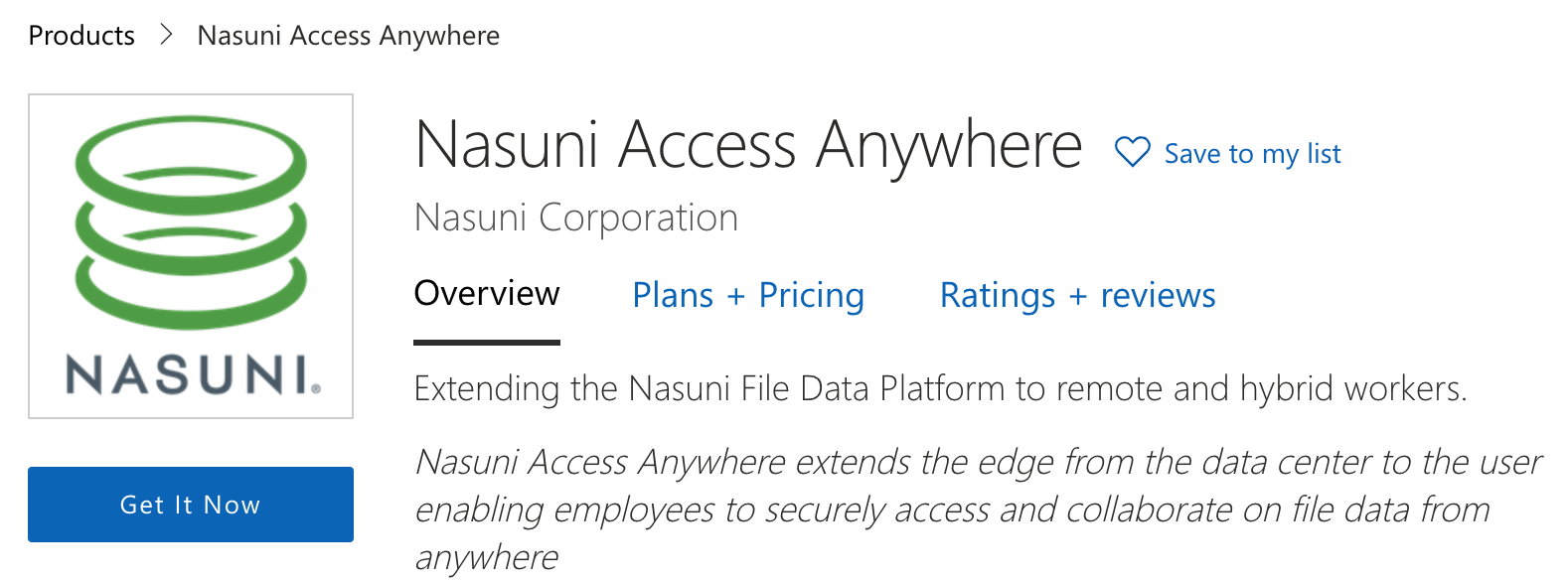 ]]
]]
Select "Get It Now" and log in with a Microsoft Account.
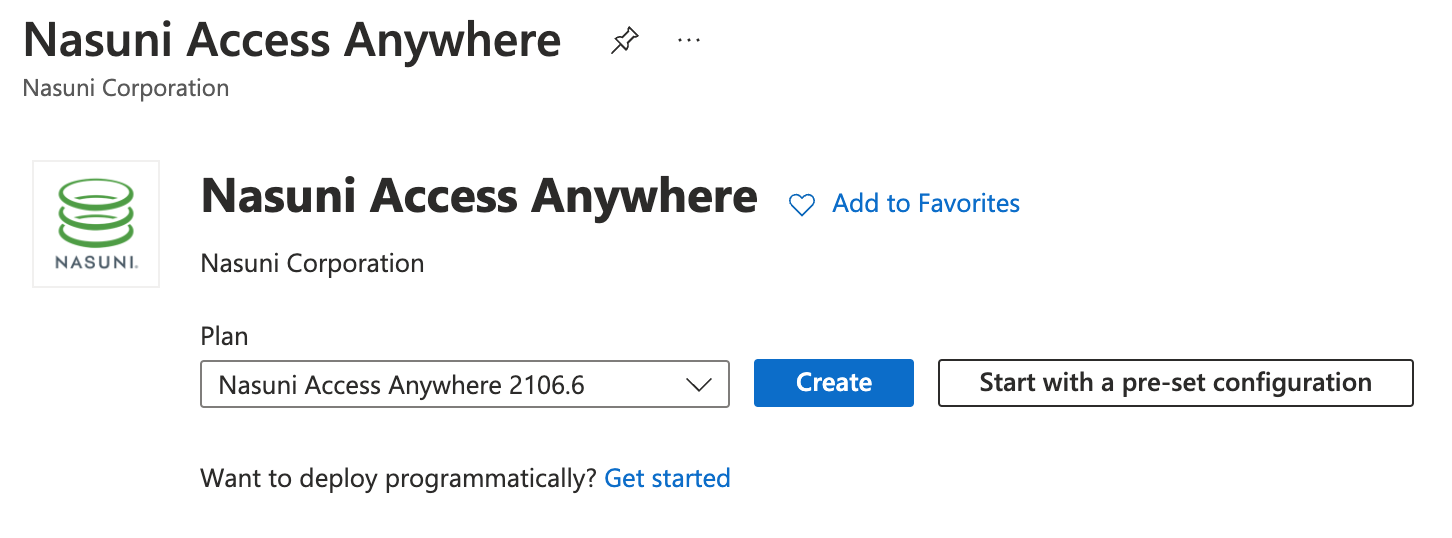
Select "Create" to Create a Virtual Machine.
Create a Virtual Machine
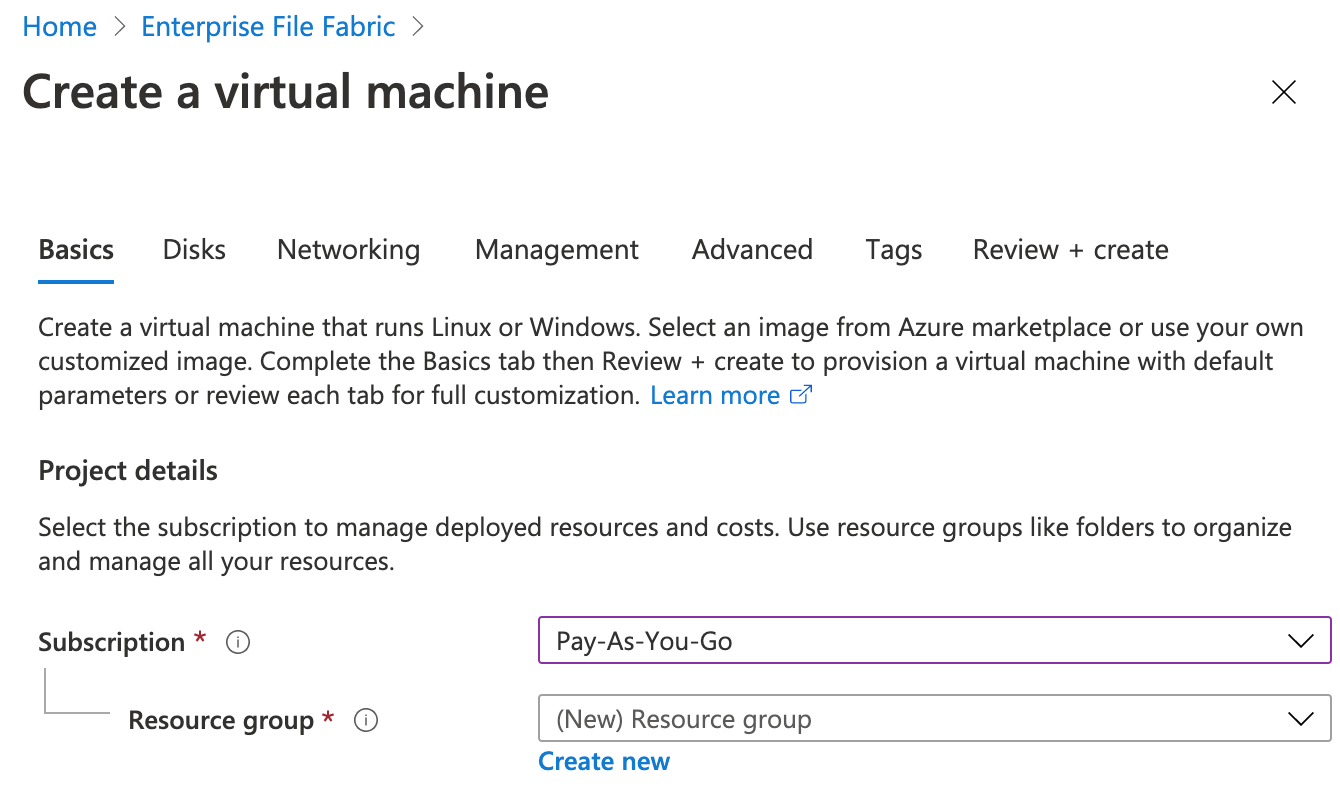
Choose where you wish to deploy the appliance:
- Check Subscription
- Check Resource Group
Enter a Virtual Machine Name such as "nasuni-access-anywhere". It will also be the default hostname.
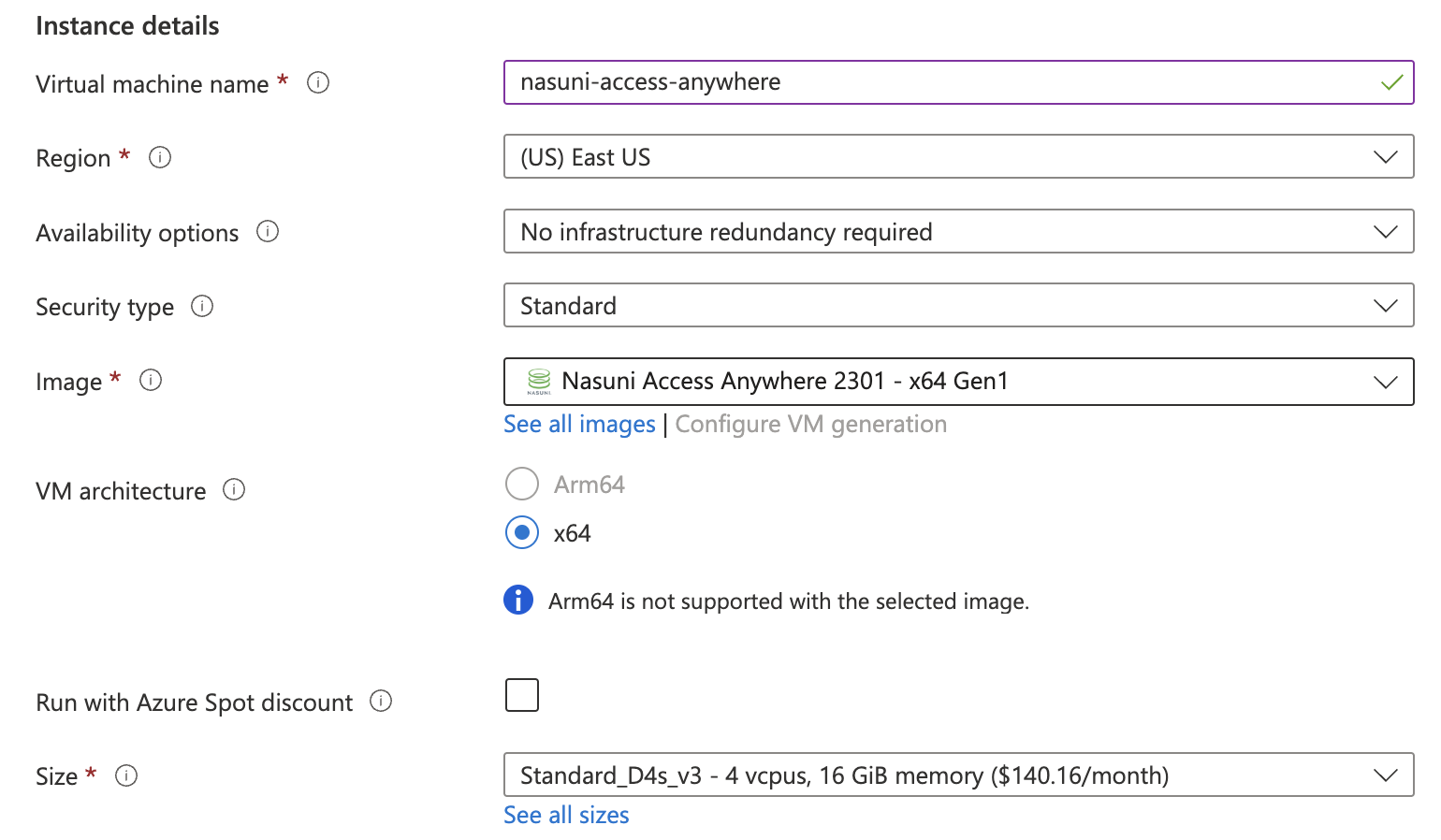
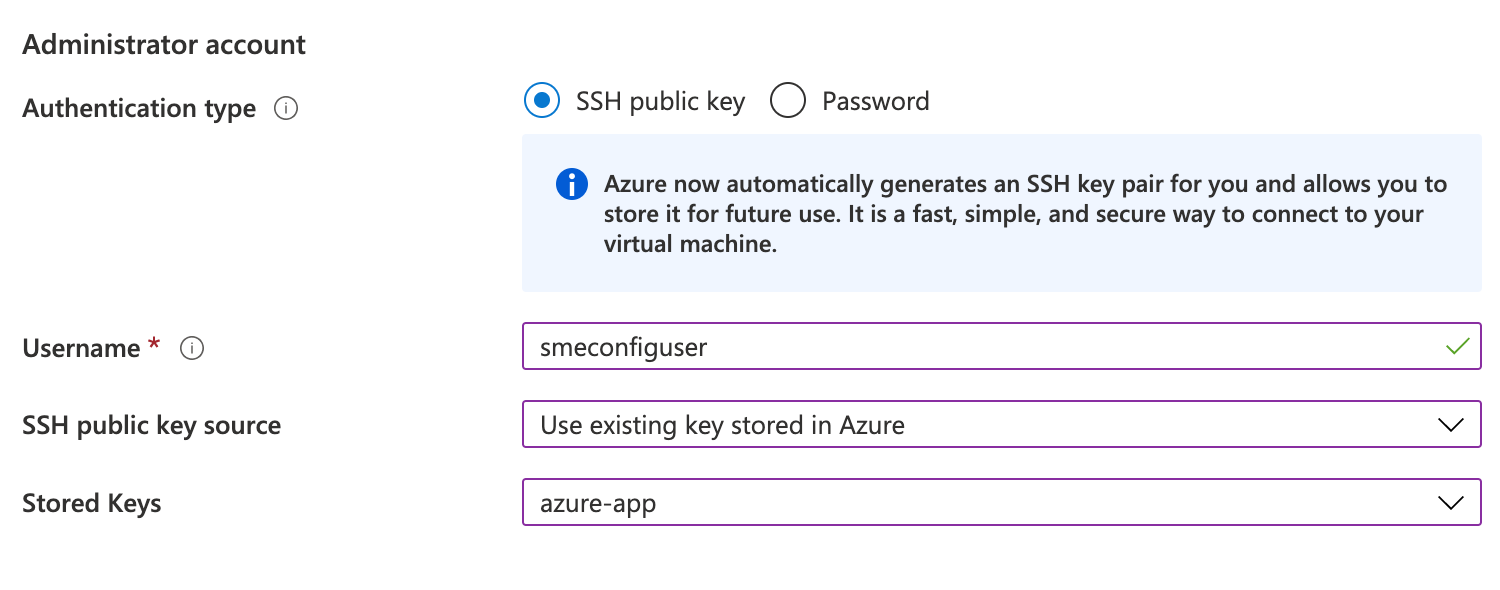
Enter the Username smeconfiguser and either create or use an existing SSH key.
Select "Next: Disks" and change the "OS disk type" to Standard SSD.
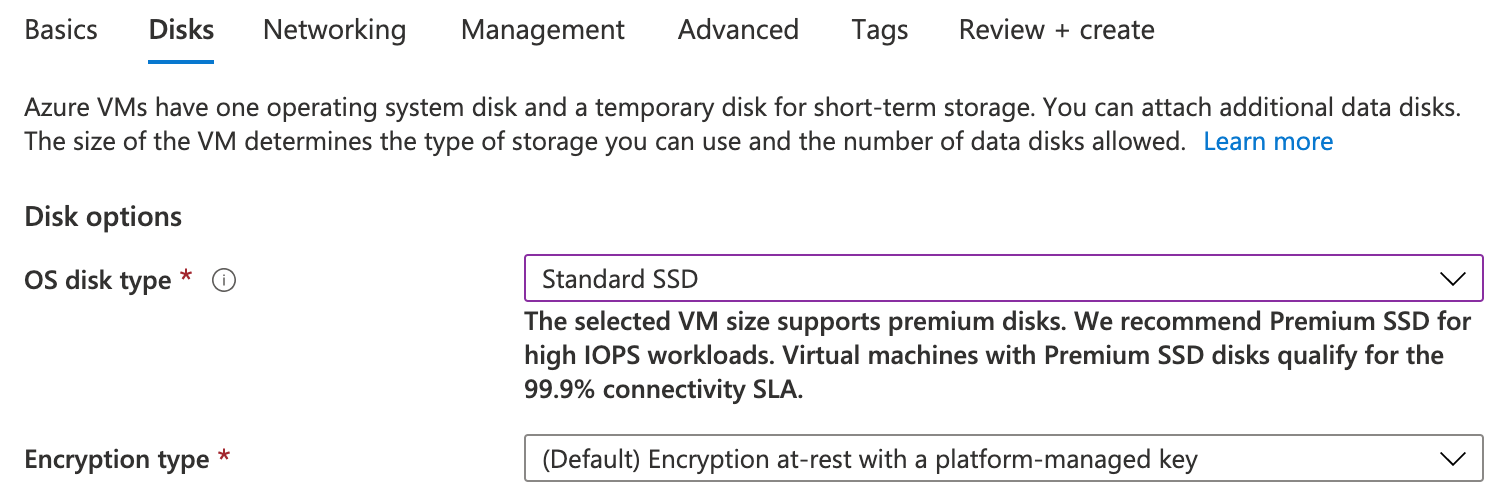
Then select "Review + create".
Select "Create".
SSH Access
The instance can now be accessed at this IP address using a standalone SSH client. The username is smeconfiguser. For example:
ssh -i "AccessAnywhere.pem" smeconfiguser@54.194.216.200
Check that you can become root.
sudo su -
This will be required to complete configuration.
More information on connecting via SSH can be found from the Azure Console. Select the instance and click Connect.
Configure Domains
SSL Configuration (Recommended)
The appliance is configured, by default, with DHCP and a self-generated untrusted SSL certificate.
In order to use the web, desktop and mobile apps over SSL you will need a trusted SSL certificate and a fully qualified domain name (FQDN).
Disabling SSL (Not Recommended)
If you do NOT wish to use SSL for the trial you can disable it.
- Log in as the Appliance Administrator as per the instructions below.
- Navigate to Settings > Site Functionality
- Set Always use HTTPS to No.
- Set Generate secure server-side links to No.
- Select Update options at the bottom of the page.
Create DNS entries
Choose two fully qualified domain names (FQDNs). For example: - files.example.com - Domain name (service endpoint and website) - files-webdav.example.com - used for WebDAV service
Add DNS type A records that point these domain names to the appliance IP Address. For example,
| Type | Name | Value |
|---|---|---|
| A | files | 54.194.216.200 |
| A | files-webdav | 54.194.216.200 |
Verify that Public DNS records are setup correctly:
curl -Lk http://files.example.com | head
curl -Lk http://files-webdav.example.com | head
These commands should resolve the domain name, connect to port 80, get redirected to port 443 and return (part of) the web login page:
<!DOCTYPE html>
<html lang="en">

<head>
<!-- title -->
    <title>Home | Nasuni Access Anywhere Server</title>

<meta content="text/html; charset=utf-8" http-equiv="content-type"/>
<meta http-equiv="X-UA-Compatible" content="IE=EDGE,IE=11,chrome=1"/>
<meta name="viewport" content="width=device-width, initial-scale=1.0, maximum-scale=1.0, user-scalable=no"/>
Change Hostname
Change the hostname to your FQDN by using smeconfigserver.
Add Inbound Access to Port 8080
The NAAConfig App is used to set up networking. To access it you will need to open port 8080. From the virtual machine resource page within the Azure portal select Settings > Networking and add an inbound port rule.
- Source - Any
- Source port ranges -8080
- Destination - Any
- Service - Custom
- Protocol - TCP
- Action - Allow
Start NAAConfig Server
If you are logged in as root leave root privilege:
[root@files smeconfiguser]# exit
As the smeconfiguser start the configuration server by typing smeconfigserver. You should see a confirmation that the config server is running:
[smeconfiguser@files ~]$ smeconfigserver
Please contact me with a browser on port 8080
Hit Ctrl+C when work is done
Now open your browser to:
http://<your_ip>:8080
Configure Hostname Settings
Here you only need to configure the three domain names. Click "Configuration" and then "NAAServer Hostname Settings".
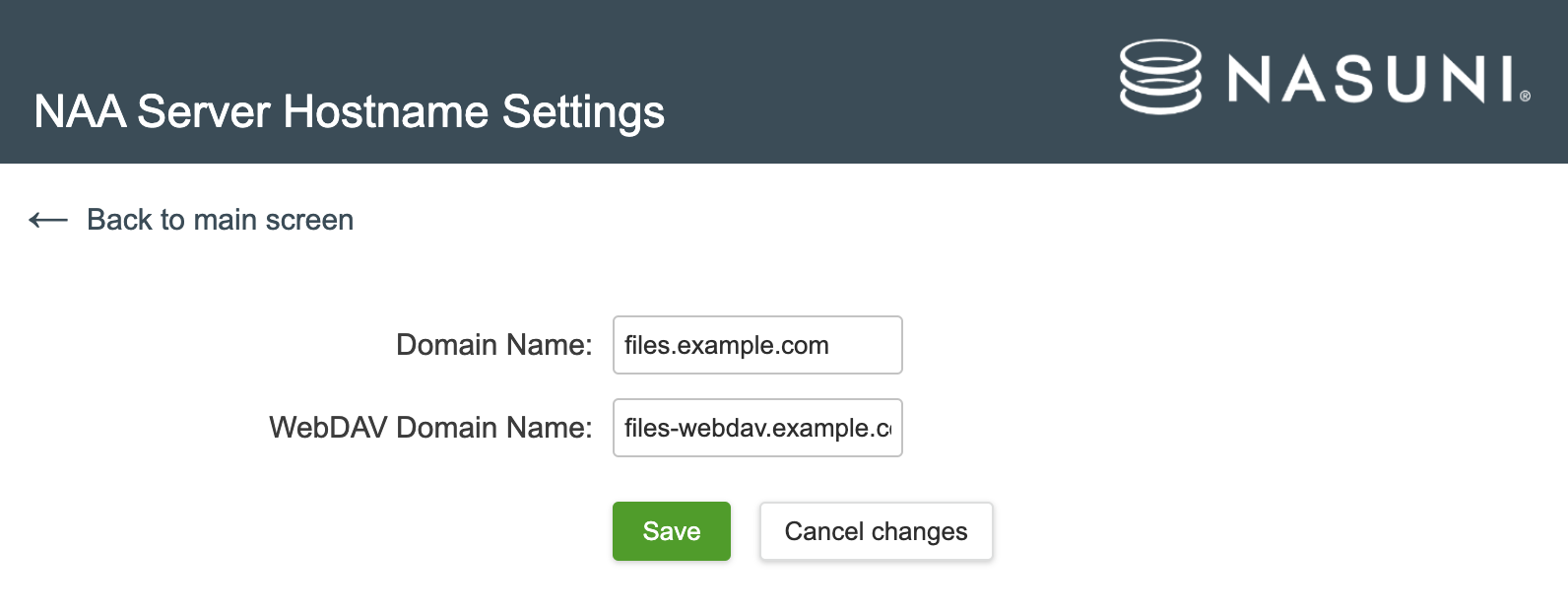
After Saving go to the "Overview" page and scroll down to the bottom to "Apply". No other changes are required for the appliance on Azure.

Follow the prompts on the page to reboot the appliance. If you are not doing this immediately stop the Config Server by typing Control-C in the terminal window.

Remove Inbound Access to Port 8080
You can now remove inbound port access to 8080.
Create SSL Certificates
This section creates and configures SSL certificates from Let's Encrypt. If you are using your own certificates (or a different service) you can use the smeconfigserver service above to add certificates.
Log back into the rebooted appliance:
ssh -i "AccessAnywhere.pem" smeconfiguser@34.194.216.200
Elevate to the root user (no password required).
sudo su -
Note: The appliance will be inaccessible during the request which may be up to a minute.
Run the following command:
certbot --no-redirect --authenticator standalone --installer apache --pre-hook "systemctl stop httpd" --post-hook "systemctl start httpd"
This command will prompt for an email address. It’s important to give this information so that an admin can be notified in the future if there are issues automatically renewing the certificate.
Please also agree to the Terms of Service. It is not necessary to share the provided email with the Electronic Frontier Foundation.
Certbot will automatically detect what FQDNs are setup for the server and prompt for which should be included in the certificate.
Which names would you like to activate HTTPS for?
    - - - - - - - - - - - - - - - - - - - - - - - - - - - - - - - - - - - - - - - -
1: files.example.com
2: files-webdav.example.com
    - - - - - - - - - - - - - - - - - - - - - - - - - - - - - - - - - - - - - - - -
Select the appropriate numbers separated by commas and/or spaces, or leave input
blank to select all options shown (Enter 'c' to cancel):
After successful completion, the machine will automatically start using the new certificates. These certificates will last for 90 days, so the final step is to setup automated renewal.
Automatically Certificate Renewal
A Let’s Encrypt certificate is valid for 90 days, and can be automatically renewed within 30 days of expiration. A simple cron job will run daily and handle renewals.
Please Note: The server will be inaccessible during the renewal. Please ensure that the renewal time is during off hours. Downtime will only occur every 60 days when a renewal is required and may last up to one minute.
While still logged in as root run the following command to add a cron job.
crontab -e
In the example below the renewal attempt will process at 2:30AM. The server ships with the timezone set to UTC. You can set the cron jobs to run at the time of your choosing, but do not change the timezone.
30 2 * * * /bin/certbot renew >> /var/log/letsencrypt/le-renew.log
This will create a crontab entry for a cron job that will handle the renewals and write its output to a log file.
Use https://www.ssllabs.com/ to test the installation after updating the certificate.
Configure Appliance
Open a browser to the domain name you assigned:
https://files.example.com
If you haven't set a domain name, use your external IP address:
https://3.234.139.146
You'll see the following login page:
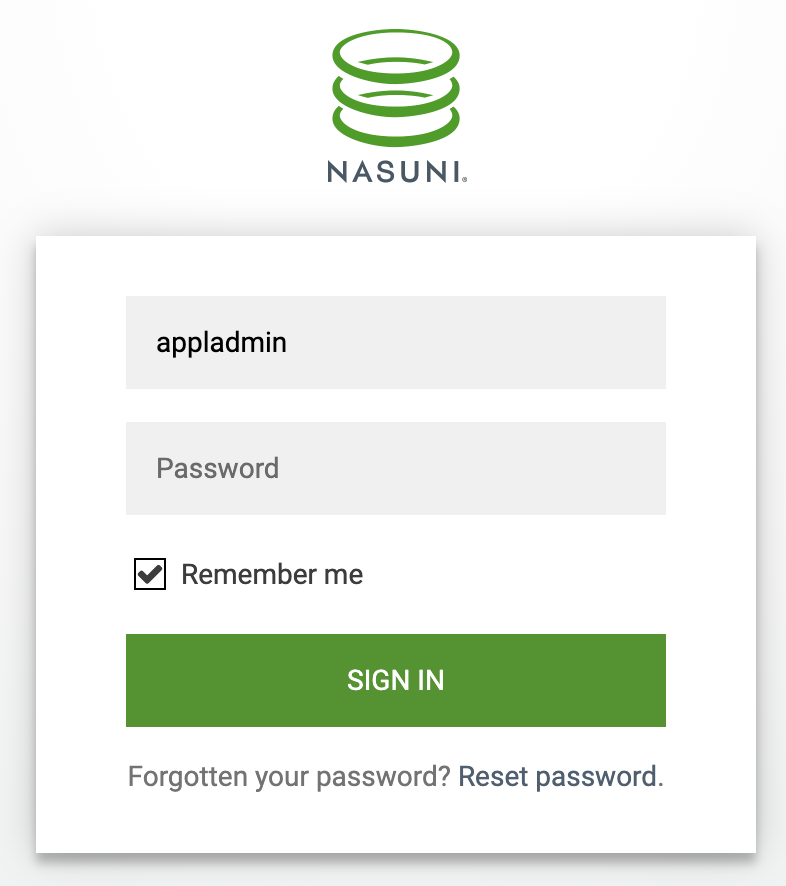
Log into the appliance using the username appladmin with the password provided to you (typically in the trial email):
User name: appladmin
Password:
Change Admin Password (REQUIRED)
Select "Password/Login" from the Main Menu to change the Appliance Administrator password.
After you select "Update password" you will be logged out and need to log back in.
License Activation
Register your site key under Settings > Account Status & License Key.
For more information see Applying-License.
Outbound Email (Recommended)
An SMTP server is used by the appliance to send registration and notification emails to users. It can be configured under Settings > Email & Filebox.
If you do not configure an email server remember not to use email notification when adding users.
Using SendGrid for Email
Microsoft has restrictions on sending email from the Azure platform. They recommend using an SMTP relay service such as SendGrid. See Sending Email from Azure with SendGrid.
An SMTP configuration is:

Use Test SMTP options to test the settings and also check that the test email was received since Azure silently discards emails sent to unsupported servers.
Change Appliance Admin Email
With an SMTP server configured you can change the email of the Appliance Admin which will require a confirmation email.
Go to the main menu (Hamburger icon) to Password/Login to change the Account Email.
You can also set up Two Factor Authentication (2FA) for the Appliance Admin from this screen.
Server Notification Email
Server errors and a daily report are sent to a notification email that must be configured by the Appliance Administrator. The default is not to email reports.
The "Notification Email" setting is on the "SMTP and Filebox Configuration" page that can be found via the menu "Email and Filebox".
Create an Organization
An organization is an administrative unit for a set of users. It includes policies, storage resources, and permissions for those users. Organizations, also called tenants, are self-managed by their users and not accessible or even visible from other organizations on the same appliance.
The appliance administrator creates organizations and provides credentials for the first “Organization Administrator” who will log in to complete the setup of organization policies and users.
To create an organization see Server/Organization.
Add Storage
Log out as the appladmin user, and log back in as the user you just created. You will first see the “Add Storage Provider” screen. You have to add storage before you can continue setup. The first storage added is the "default storage" used for internal files such as generated image thumbnails. The default storage can be changed in the future.
Select your provider and follow the instructions on the next couple of screens.
See Azure for more information.
Single Sign-On (Optional)
An authentication provider can be added to allow users to log in using their corporate credentials. For Azure, we recommend Azure Active Directory. There are two ways to connect.
-
Use Ldap with Azure AD Domain Services if you will be using a Multi-user SMB connector such as for Azure Files, Nasuni, or Azure NetApp Files.
-
Otherwise use SAML Integration.
Next Steps
Once this is complete you can: - Add users
For more information see Index