Adding the Google Drive Storage Provider
Last updated on August 17, 2020.
You can add your Google Drive account as a storage provider and access documents and files through Access Anywhere or through Google applications.
Since Google Drive accounts are associated with individuals it's more common for individual users to add Google Drive as a private provider. Only they will have access to files in Google Drive. The Access Anywhere makes it easier to transfer information between different clouds, and adds additional sharing options and governance on Google Drive.
Shared drives are supported.
NOTE: Unusually for a file storage provider Google Drive supports duplicate folders and duplicate files. The Access Anywhere presents as a file system and does not support this behaviour.
Choosing the Google Drive Provider
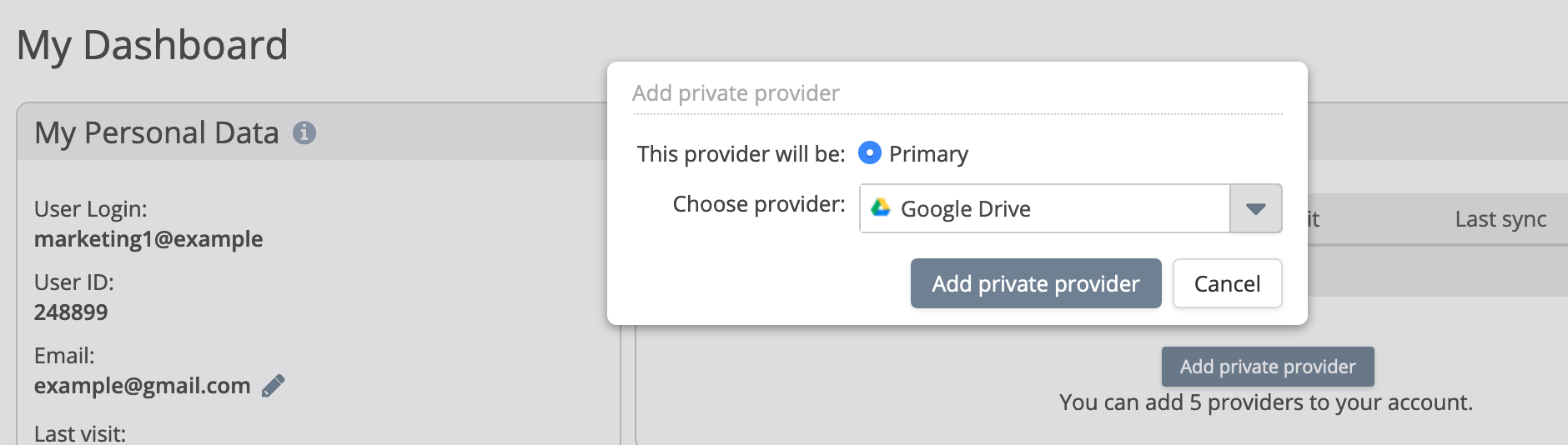
The first step is to choose to add Google Drive to your Account either as a first step on activation or later from My Dashboard
Authorising Access
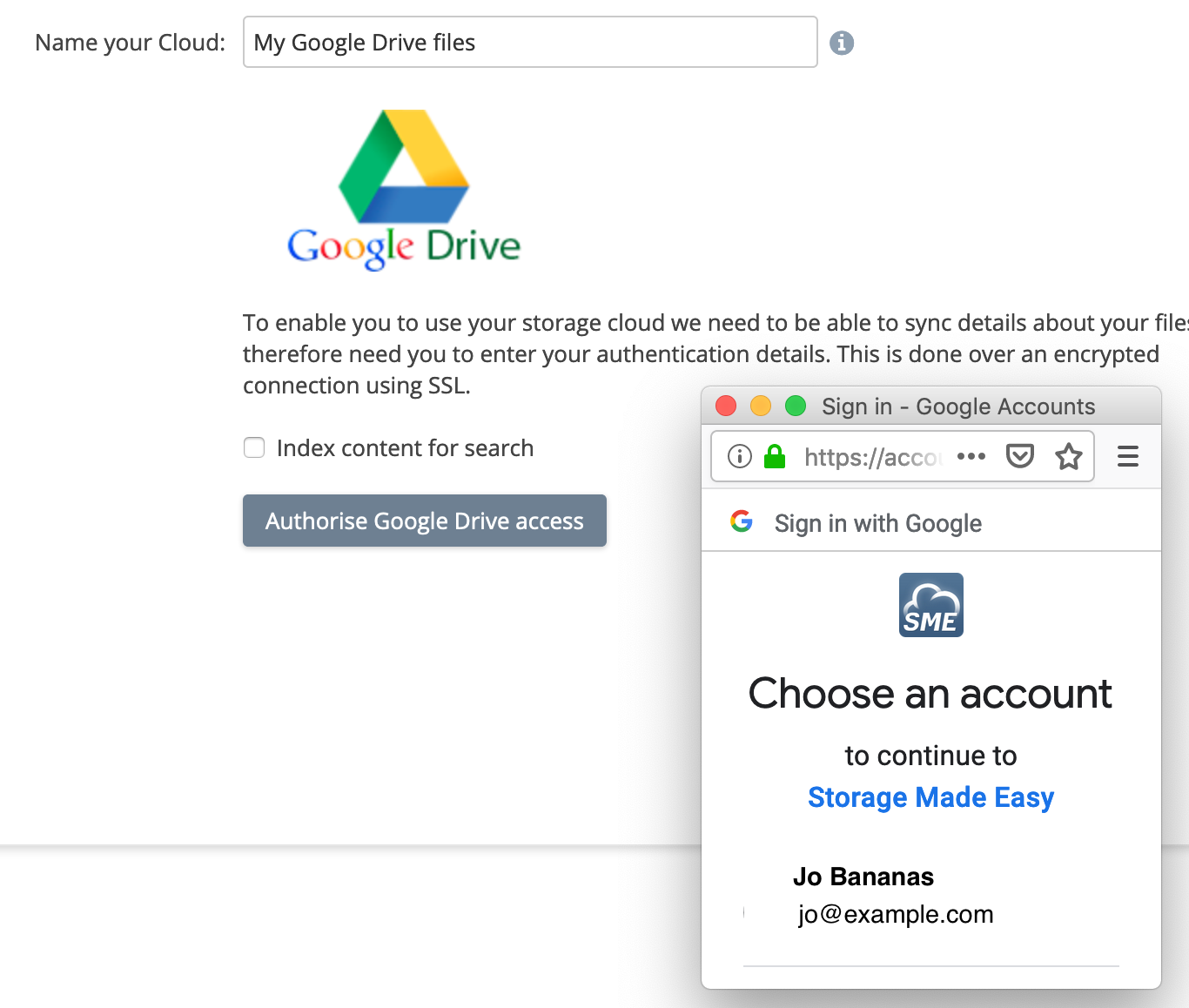
To enable a deep context search on this provider check the box. "Index Content for Search". It can also be enabled later.
You need to authorise your account to access your Google Drive account. To do this click Authorize Google Drive Access and follow the prompts to authenticate your account.
= (Revoking Account Access)
You can revoke access at any time by going to Google Account settings from the web and, in the Security section clicking on the "Third-party apps with account access".
You will then be taken to a page which will list the services that have access to your Google Account.
Sync Completed
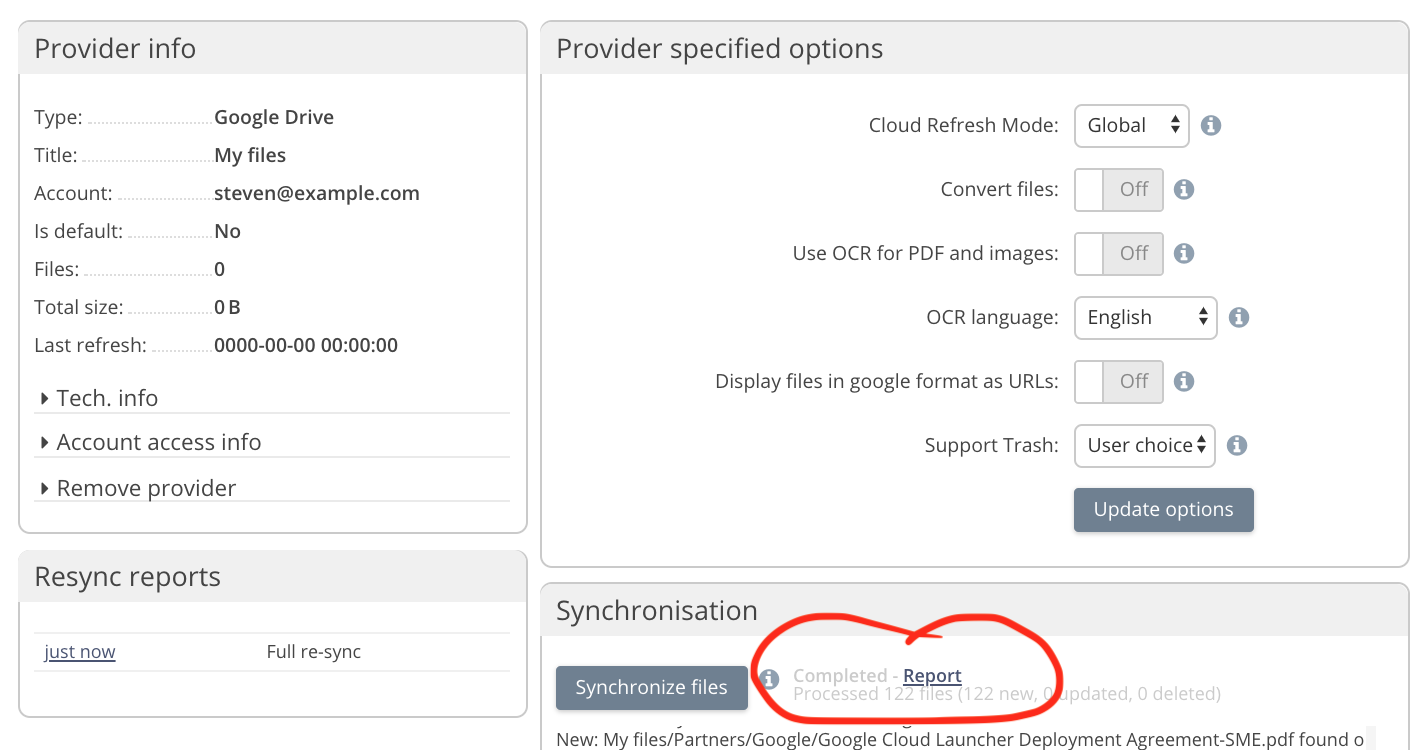
Once the sync has completed you will be able to work with your files with the file managers or other clients.
Options
The Google Docs Provider has a few special options within it's settings page (accessible from MyDashboard->Settings)
- Convert files: This determines how files will be treated when you upload them to Google Docs. If Convert is 'off' then office files will not be converted to Google Docs internal format so you can edit them. They will just remain as a file. The default is "off" as Google Docs does not support all formatting so if you have a lot of advanced formatting in your document some of it could be stripped out if convert is "on". This is your choice.
- Use OCR for PDF and images and OCR language: Converts PDF files and images to text. Affects pdf, jpg, png and gif files. See also https://support.google.com/drive/answer/176692.
- Display files in google format as URLs: Allows editing of documents in Google format using the Google editor.
Remove Provider: If you choose to remove the provider you first must make sure it is not your default provider (you can change this from the 'My Dashboard' screen). Once it is not you can remove the provider which removes the link to Google Drive from your account.
Rate Limiting
Google Drive may limit the rate at which it processes requests. This page: Access Anywhere Handling of Rate-Limiting Storage Providers explains how Access Anywhere responds to rate limiting.