Mac Desktop Installation
last updated on: Apr 2, 2024
These are installation instructions for Mac.
The software can be installed and configured by each user through the installer. Alternatively organizations can install and configure the software using commercial provisioning software like JAMF
Installation by User
To install the cloud drive each user needs:
- Installer - The Nasuni Access Anywhere for Mac Installer can be downloaded from your Nasuni account at https://account.nasuni.com.
- Endpoint - The endpoint for your Nasuni Access Anywhere installation is the same FQDN you use for the Cloud File Manager.
- Account credentials - Typically your corporate username and password.
Step 1 - Install Software
Run the installation package to install the software.
The installer may be run as the regular non-admin user.
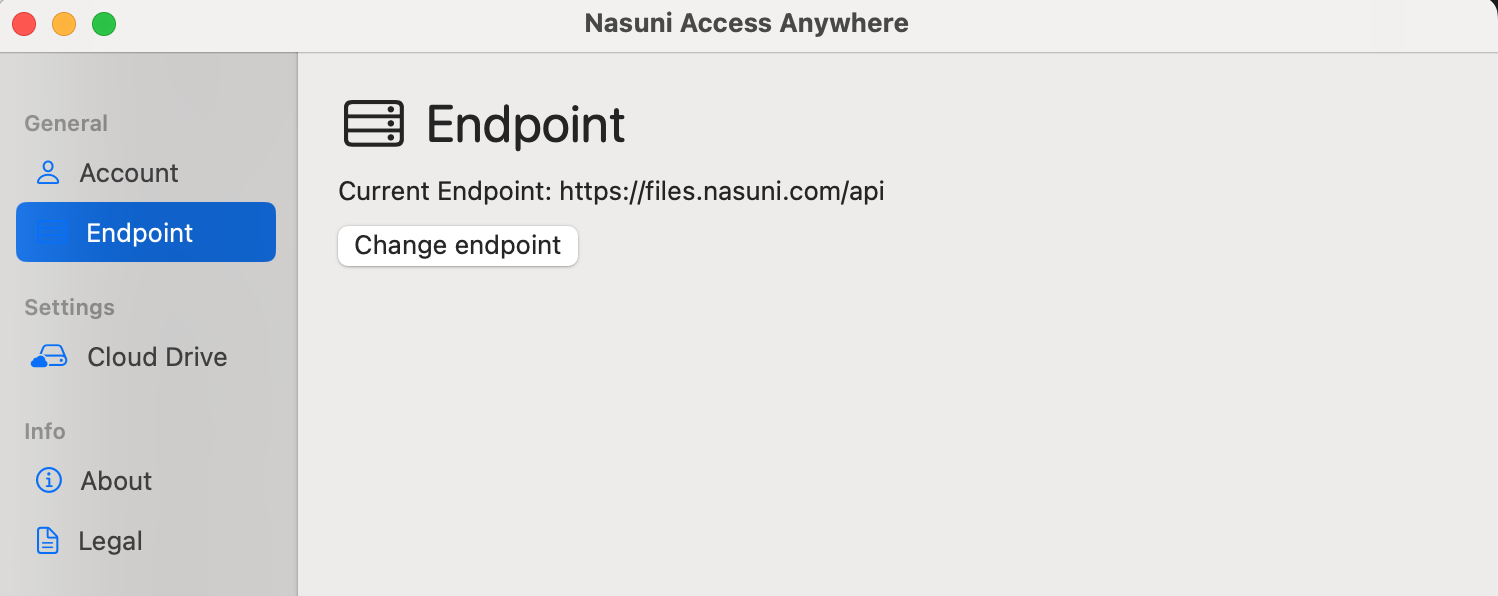
Step 2 - Change Endpoint
Launch the "Nasuni Access Anywhere" application from the Mac Launchpad. Select the button to change the endpoint.
Step 3 - Account Login
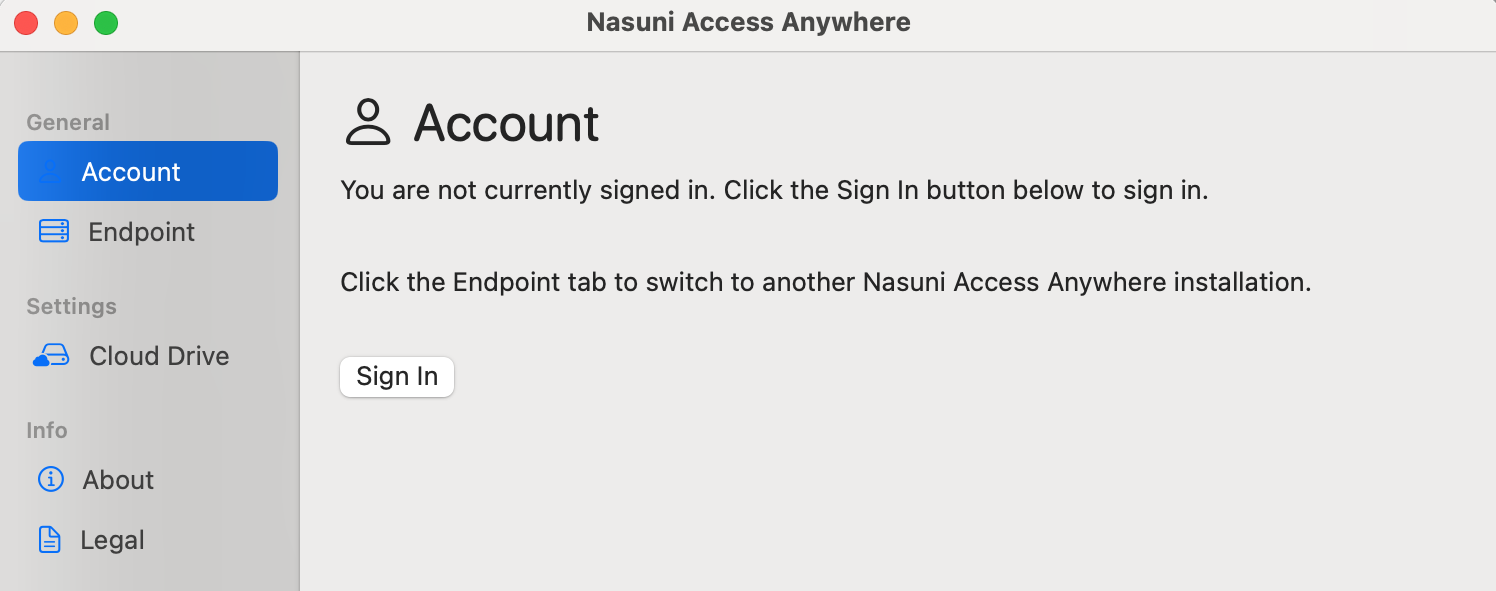
Change to the "Account" tab and select "Sign In". You will be prompted to login.
Step 4 - Enable Cloud Drive
After logging in change to the "Cloud Drive" tab to enable the Cloud Drive.
Use the default settings under "General" unless instructed by support.
Step 5 - Open Cloud Drive
Open Mac Finder and navigate under "Locations" to "Nasuni Access Anywhere".
Accept any subsequent permission prompts.
Enterprise Deployments
Version 2.1 and greater enables IT Administrators to configure the Mac Drive via commercial provisioning software, like JAMF. The available configuration options are:
| Key | Value(s) | Purpose | | endpoint | https://naa.example.com | API Endpoint for NAA installation | | restrictEndpoint | true or false | Defines if users can override the default endpoint value. Default false | | AllowSelfUpgrade | true or false | Defines if automatic upgrade is allowed by the user. Default true |
Customers wishing to deploy these, should deploy these as a Plist-based configuration profile to the end-user devices.
<?xml version="1.0" encoding="UTF-8"?>
<!DOCTYPE plist PUBLIC "-*Apple*DTD PLIST 1.0*EN" "http:*www.apple.com/DTDs/PropertyList-1.0.dtd">
<plist version="1.0">
    <dict>
        <key>endpoint</key>
        <string>https://naa.example.com</string>
        <key>restrictEndpoint</key>
        <false/>
        <key>AllowSelfUpgrade</key>
        <true/>
    </dict>
</plist>
This configuration should be pushed to the following Preference Domain:
Instructions for installing the above Plist file onto end-user devices will vary by the software you are using. An example of configuration with JAMF can be found here: https://docs.jamf.com/technical-articles/Deploying_Custom_Configuration_Profiles_Using_Jamf_Pro.html