Content Discovery and DLP
File Content Discovery enables files to be discovered based on text that they contain. Actions can be set on what happens to such data once it is discovered and flag it to a nominated person so that an appropriate action or process can be taken. This prevents Data Loss or Compliance breach exposure (Data Loss Prevention).
Data stored and uploaded is scanned for data stored in files, based on pre-selected templates, in real-time.
Whether for DLP, compliance or competitive reasons, companies often have a need to identify documents of special interest ie.
- Which documents contain personal data restricted under GDPR?
- What sales contracts reference obsolete SKUs?
- Which files contain the name "Ernie Madoff"?
Content rules can also be used with Automationrules that react to content discovery events by taking actions such as sending an email, moving a file etc.
See also:
Feature Summary
Detecting Content
Content Discovery works by looking for content of interest after files are indexed by Content Search. This happens when files are added or updated, and when storage providers are added or synchronised (if Content Search is active for the provider). A set of content detectors is used to look for different kinds of information. (We refer to data identified by a content detector as “matching content”.)
Our example company operating within the GDPR might have a detector for UK NHS numbers and a detector for Spanish NIF numbers, among others. Our example sales organization company might have detectors for a specific set of SKUs
Automation
Data automation rules can be used to provide actions specific to particular content. For example, a file could be moved to Quarantine folder, or sharing permissions restricted. See Automationrules for more information.
Classification
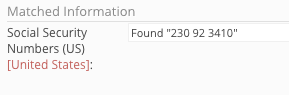
Files in which matching content is found are tagged and classified by the type of content discovered. Users with appropriate permissions can see the matched content that was found in a document on the File Manager’s “Info” tab for that document and elsewhere in the Web file Manager.
Notifications
Administrators and users with the Content Discovery role receive an email and a message when documents containing matching content are detected. The file owner (the user who uploaded the file) also receives an email and a message.
An email is sent to administrators and Content Discovery users when a share link is generated for a file in which matching content has been detected.
Automation rules can use used to send notifications to other roles and specific email addresses.
Search
Users with appropriate permission are able to easily search for and retrieve documents tagged as containing matching content.
Discovery Process
Metadata Indexing
Nasuni Access Anywhere updates it's metadata index when files are added, updated or deleted through the fabric, or when storage providers are synchronised.
The metadata index is a cache of the file name, size, timestamps and other information that provide fast file searches and directory listings.
Content Indexing
If providers are enabled for search files their content is also scanned and indexed.
Files are scanned slightly differently based on the type of content they contain (text, xml, json, or media) and this is determined by the file's extension. Over one hundred extensions are recognized including: 'txt', 'doc', 'docx', 'rtf', 'pdf', 'htm', 'html', 'xls', 'xlsx', 'ppt' and 'pptx'. Individual files within archives (those with a 'zip' or 'tar' extension for example) will be processed the same way.
Full-text content indexing supports deep search and is also required for content discovery.
Scanning in Process
While a file is being scanned and indexed, a visual indicator that the scan is in progress appears next to the file name in the File Manager. Also, a warning message that a scan is in progress is shown at the top of the directory listing in the File Manager.
Classification and Tagging of Files
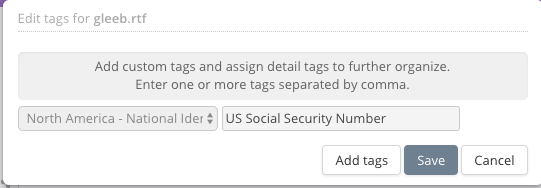
When matching content is detected in a file, a category tag is added to the file metadata indicating the type of content that was detected. For example, if Access Anywhere is configured to scan for US social security numbers as part of the “North America - National Identifiers” Content Detection Category, and one or more matching data values are found by the social security number detector when the file is scanned, then a tag with the value “US Social Security Number” will be added to the file's metadata under the “North America - National Identifiers” classification.
Notifications
Administrators and Content Discovery users are notified when a file with matching content has been detected.
Content Discovery users, including administrators, receive a notification by email:
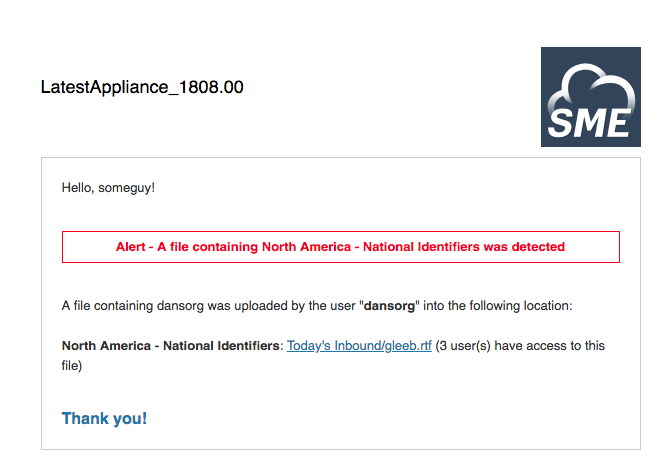
The file owner (the user who uploaded the file), receives both an email and a message:

These messages are delivered through the Cloud File Manager and other applications.
Note that email appearance and contents can be adjusted by the appliance administrator.
File and Folder Indicators
The folder icons for folders that contain files with matching content - either directly or in a child folder - are marked with a special decoration in the File Manager:
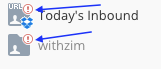
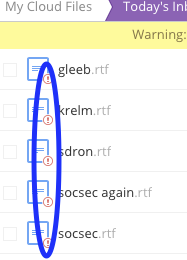
File icons for files with matching content also have a special decoration in the File Manager:
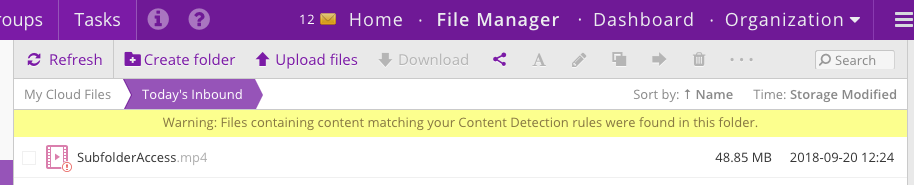
When the contents of a folder that contains files with matching content, including within subfolders, a notice about the presence of files with matching content is added to the top of the file listing area in the right-hand panel of the File Manager:
Activities
A number of activities behave differently for files where content has been tagged. Usually this is only for users with admin or content discovery permission.
Sharing
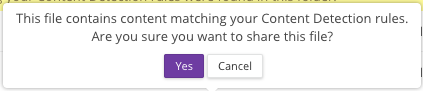
A confirmation dialog is presented to users who share documents that contain matching content:
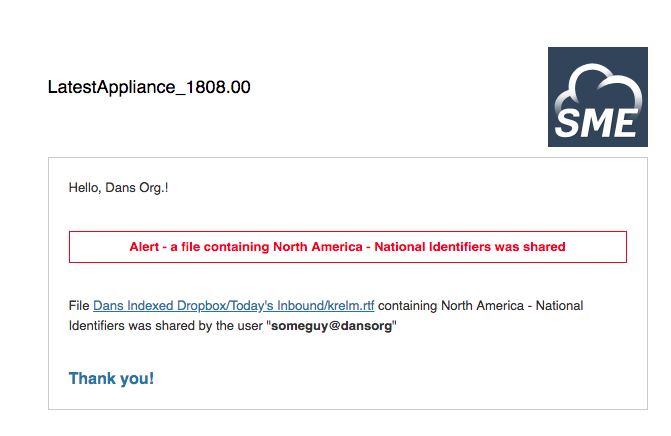
When the file is shared notifications are sent by email to Content Discovery users, including administrators:
Searching
Content searches through the Web-based File Manager can filter for specific matching content information. The option is available for Content Discovery users, including administrators.
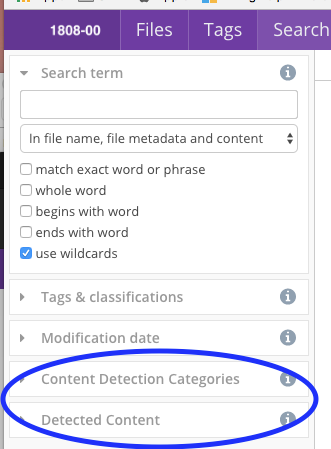
To search for files with matching content use either or both of the Content Detection Categories control and the Detected Content control on the File Manager’s Search tab:
When searching by Content Detection Categories, check the category or categories for which you want to search:
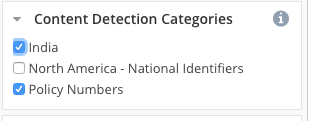
Files containing matching content for at least one of the content detectors in each of the selected categories will be candidates for inclusion in the search results. This behaviour may change in future versions.
When searching by content detectors, tick the detectors for the kinds of matching content for which you want to search:
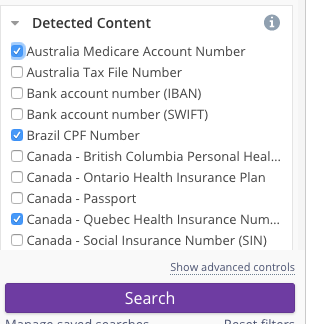
Files in which matching content was detected by any one or more of the selected detectors will be candidates for inclusion in the search results.
It is important to understand that if both the Content Detection Categories control and the Detected Content control are used in a search, a file would have to satisfy the conditions for both to be included in the search results. This is true for any combination of controls on the search screen; only files that meet the conditions defined in all of the active controls will be included in the search results.
Note that the “Tags & classifications” control cannot be used to find files based Content Discovery classifications. Only the two controls discussed in this section can be used for that purpose.
Tag Cloud
Each of the Content Discovery Groups belonging to an organisation is treated as a tag classification and shown in the list of tag classifications on the File Manager’s Tags tab. As with other classifications, when a Content Detection Category is selected from the classifications list on the Tags tab, the tags belonging to the selected classification will be displayed in a tag cloud:

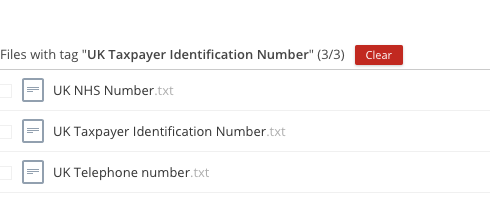
Also, as with other classifications, a list of the files to which a specific tag has been attached can be displayed by clicking on the tag in the tag cloud:
Info Pane
When the File Manager’s Info pane is shown for a file that contains matching content, the Classifications (Content Detection Category names) and Tags (content detector name) for the matching content that was found in the file are displayed for administrators and those in the Content Discovery role.
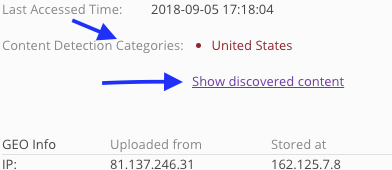
Clicking on the “Show discovered content” link causes the matching content to be displayed: