Watermarking
Watermarking
last updated on Aug 9, 2023
Watermarking enables administrators to easily add watermarks on previews and shared files, helping them to protect against, and ultimately trace information leaks.
NOTE: Watermarking can be combined with 'web view' only permissions resulting in a restricted, secure way of providing documents for viewing only with full traceability and protections for the documents.
How does the DLP Watermarking work?
Watermarking of files can be enabled for the following situations:
- File Previewing
- Delivery of files access via Shared URLs
When watermarks are enabled, visual and non-visual stamps are added to the documents. The visual stamps it will place a document are:
- In the centre of the document
- In the footer of the document
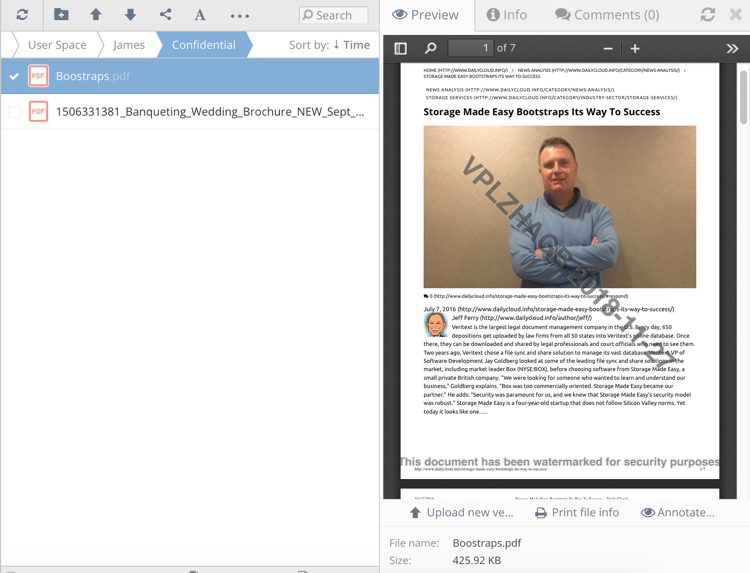
The visual watermarks are applied with translucency, which means that it does not obscure the original content. The Administrators can control both the colours, fonts and sizing of the applied visual. The visual watermark applied in the centre of the document will contain a unique reference number, which can be later used to trace the document back to the original user. The visual watermark in the footer does not contain a unique identifier, but instead contains a message that can be set by the Administrator, for example “This document is the property of AcmeCorp. Sharing is not permitted to any unauthorized persons.
Non-visual watermarks are also applied to the documents. These are added as metadata to the documents providing tracebacks to the original user.
Watermarks are primarily applied to PDF documents, however this can be extended to include MS Word, MS Excel and MS PowerPoint documents too.
Setting up Watermarking
To enable Watermarking, first login to your as an Organisation Administrator.
Click on the Organization menu and select Policies. From the available settings, click on DLP and you will observe the watermarking settings. Initially you will see settings like the following:
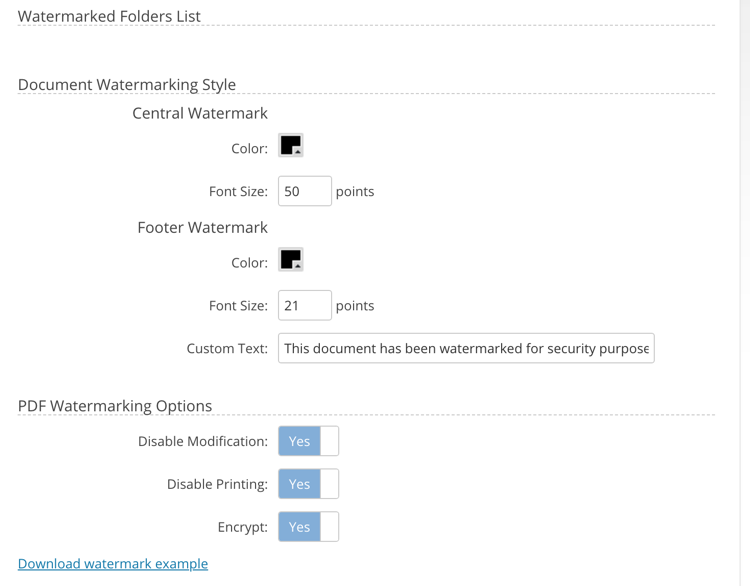
The following is a description on how each of these fields work:
-
Central watermark
- Color - This sets the color of the central watermark
- Font size - This sets the font size of the central watermark in points.
-
Footer watermark
- Color
- This sets the color of the central watermark
- Font size
- This sets the font size of the footer watermark in points.
- Custom Text
- This is the text that will be placed at the bottom of the document
- Color
-
PDF Watermarking Options
-
Disable Modification
- When enabled, PDFs will carry this Adobe flag indicating that the documents cannot be modified. This is respected by Adobe Reader and other PDF viewers.
-
Disable Printing
- When enabled, PDFs will carry this Adobe flag indicating that the document should not be sent for printing. This is respected by Adobe Reader and other PDF viewers.
-
Encrypt
- When enabled, the PDFs contents will be encrypted using a unique string that Access Anywhere does not retain. Since an the encryption phrase is required to unlock the document for editing this generally makes it harder for watermarking tools to remove the watermarks.
-
Once you have configured your desired settings you can click on the Download watermark example link to preview an example watermarked file with your settings. To save your settings, click Update Policies.
Now that you have configured your watermark settings, you can enable this on the folders you want watermarked.
In the File Manager navigate to a folder that you wish to activate watermarking on.
Right click on the desired folder and select Watermark Settings.
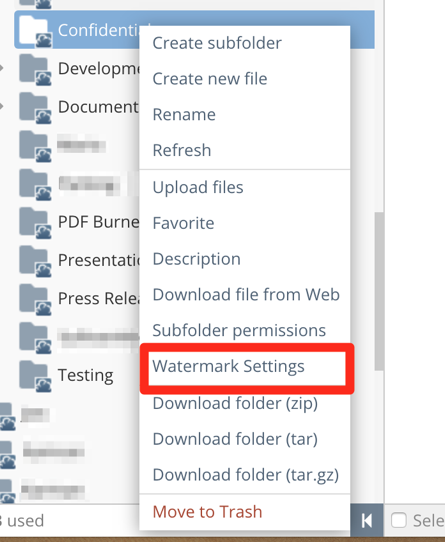
Next, you will be prompted to select your watermark settings, in like the following.
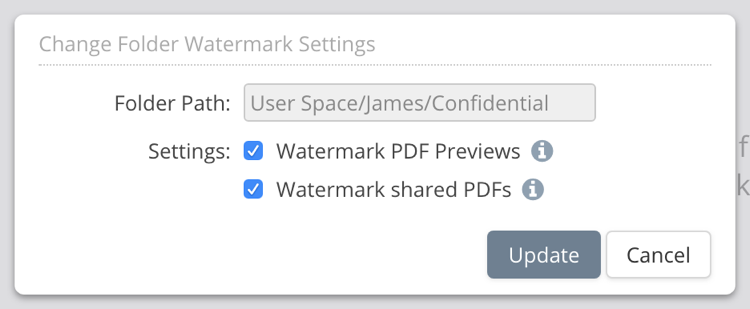
In our case we will be enabling watermarks for both PDF previews and PDFs shared via the Sharing functionality.
Click Update and your watermark settings will now be saved.
Your watermark settings will be applied to the current folder and all of its subfolders.
Access Anywhere supports previewing of documents like Word, Excel and PowerPoint through different viewers. The Office-Previewer is a self hosted previewer that, if enabled and configured, can also be used in conjunction with the watermarking feature to watermark previews of Word, Excel or PowerPoint files. Once you have configured your Internal Document Preview, there are no additional configuration changes you need to make in order for the watermarking to take effect. This document does not cover the configuration of the internal document previewer.
Testing Previews
To test the watermarking of previews, either select a PDF or upload a new one into the directory we enabled watermarking for. Once the preview loads, you will see a watermarked file like the following:
Testing Shared PDF Watermarking
If you have enabled Shared PDF watermarking, you should first find a PDF file that you wish to share, click the Share menu in the File Manager and select Share by URL. Once you have configured the sharing settings for that PDF, any time a user downloads that PDF, it will be securely watermarked.
Reviewing Watermarked Folders
To manage the folders that you have setup watermarking for, navigate back to the DLP section in your Policies. From this screen you will now be able to see the folders that you have configured watermarking on. A screen like the following will be displayed showing you the folders you have configured for watermarking.

Tracing Watermarked Files
If you are in a situation where you need to trace a watermarked file back to the person that distributed it, Access Anywhere provides an interface to lookup the watermark codes. Given you have the unique watermark code, under the Organization menu, select Audit Event Logs. From this screen, click on the Watermarking Logs link at the top. From this screen you can search for matching stamps and correlate that back to the user that initially previewed or shared the file.